Breaking the Language Barrier:
Creating a Localized Card
Ensure your structural elements are presented professionally for your target audience.
How Language Selection Works
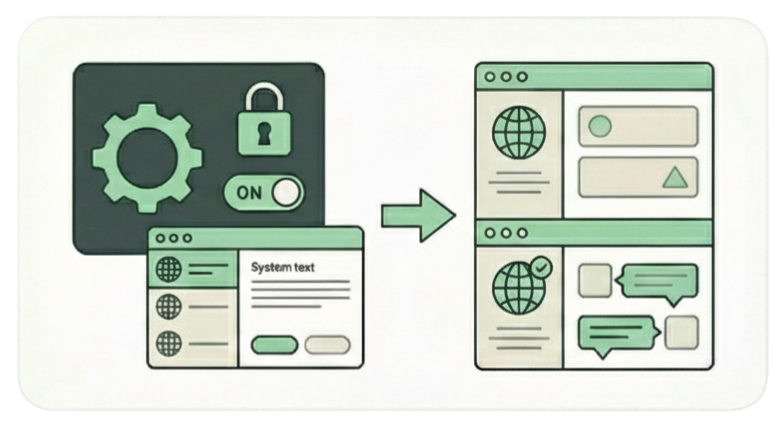
When you begin creating a new card, you are prompted to select a language. This selection dictates the language used for all pre-set text on your card's interface.
What is Set:
Controlled by Setup Setting
Automatically translates system text like 'Services,' 'Gallery,' and button labels.
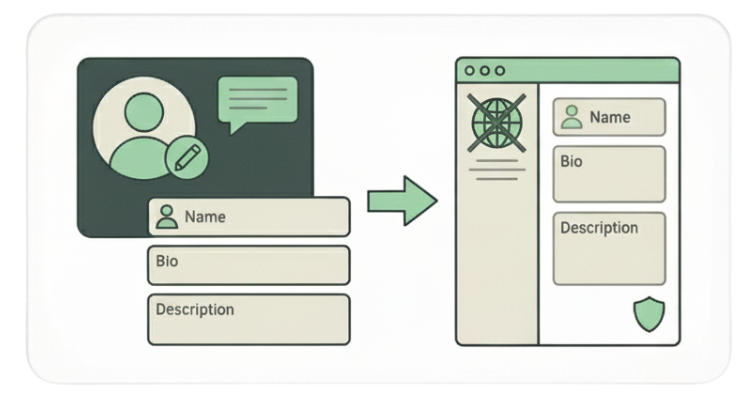
What Is Not Translated:
Controlled by You
Your Name, Bio, and Description remain exactly as typed. You must enter this text in your desired language.
Strategy: Multi-Language Targeting
The most effective way to address a multi-lingual audience is to create a separate digital business card for each primary language.
Card A (English)
Share at London events.
Select English at setup. Enter all bio/services text in English.
Card B (Spanish)
Share at Madrid events.
Select Spanish at setup. Enter all bio/services text in Spanish.
Smart SharingOnce created, share the specific Personalized Link with the corresponding audience to ensure a highly accurate presentation.
Escape the bottleneck. Clone yourself. Scale your business 24/7.